Deploy a completely static Astro site to DigitalOcean App Platform
Astro's docs skip DigitalOcean, and DigitalOcean's autodetection assumes you want a Node server. Here is the path to a fully static deploy for about five dollars a month.
static_sites:
- build_command: npm run build
  environment_slug: node-js
  github:
    branch: main
    deploy_on_push: true
    repo: your-repo-name
  name: your-app-name
  output_dir: dist
source_dir: /I run this site as static HTML from a dist/ folder. Astro builds it, App Platform hosts it, and nothing needs to stay running on a server after the build finishes. That setup works well on DigitalOcean, but Astro’s official deploy guides never mention it. They cover Netlify, Vercel, Cloudflare Pages, and a long list of other hosts while skipping DO entirely.
Every time I set up a new Astro project on App Platform, the same thing happens. The platform sees Node in the repo and puts me on a Web Service with a plan bigger than I need. If I miss the chance to override that during create, the first build fails and I end up in the App Spec fixing what should have been a Static Site from the start.
Static versus dynamic on App Platform
Dynamic (SSR) Astro behaves like any other Node framework on App Platform. DigitalOcean detects Astro, assumes a web service, and asks for a run command and a port. Tune the name and size if you want, click Create app, and you are in the same world as Next.js or Express.
For a fully static site, you run npm run build, ship the dist/ folder, and you are done. On App Platform that means choosing Static Site as the resource type, pointing output_dir at dist, and (as of the time I am writing this) downsizing to the five dollar per month plan instead of the twenty-four dollar default.
If you actually want SSR: adjust size and naming to taste, then Create app. The steps below are for the static path.
Before you open DigitalOcean
Run a local build first so you know the project is healthy:
npm ci
npm run build
You should see a dist/ folder with HTML, assets, and whatever your sitemap generates. If that fails locally, fix it before you wire up App Platform.
Also check astro.config.mjs for a site URL that matches your production domain. Static deploys do not magically fix wrong canonicals.
Step 1: Create a new App Platform app
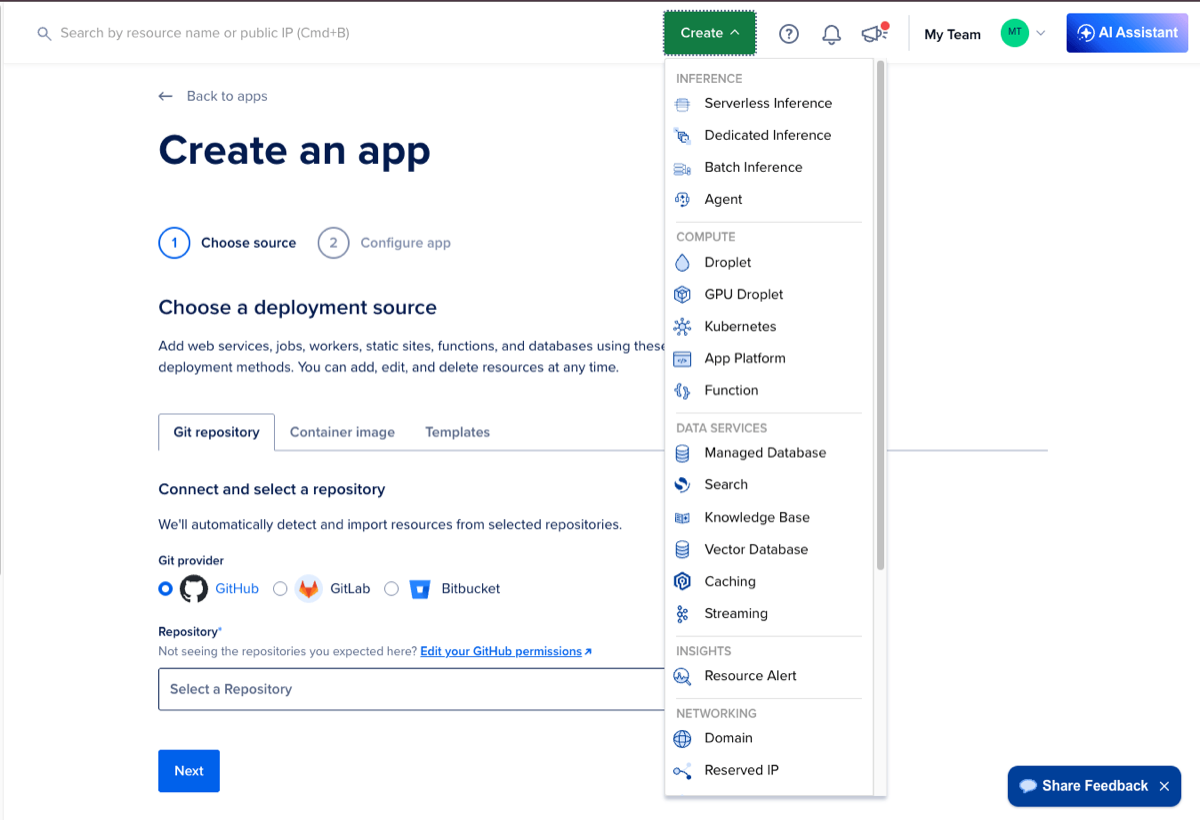
From the DigitalOcean dashboard, open the Create menu and choose App Platform. That kicks off the two-step flow: choose a source, then configure the app.
Step 2: Connect your repository
Pick your Git provider (GitHub, GitLab, Bitbucket), authorize access if you have not already, and select the repo that contains your Astro project. Choose the branch you deploy from, usually main.
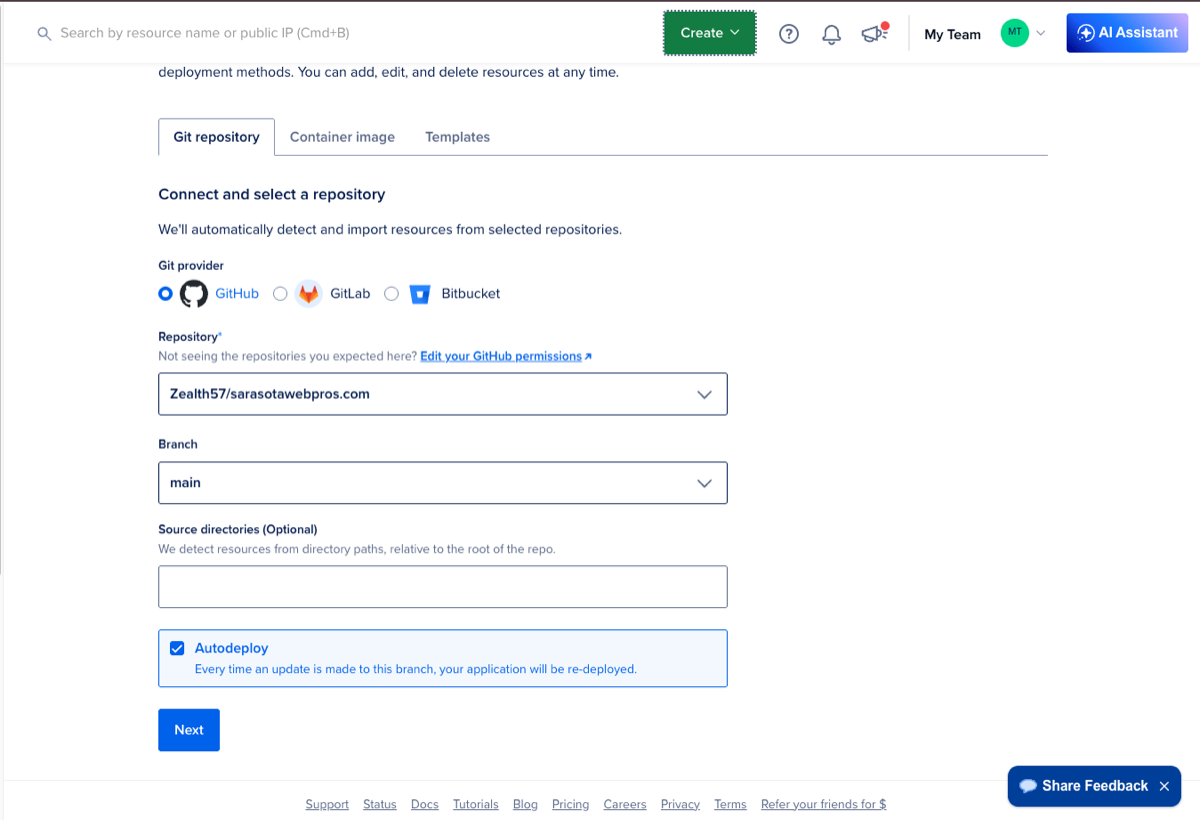
Once you point App Platform at the repo, it reads your package.json, sees the start and dev scripts, and decides this must be a dynamic Node app. The UI will show a Web Service, a run command field, and instance sizing. That is the right shape for SSR. It is the wrong shape for a static blog unless you change course in the next steps.
Step 3: Downsize to the five dollar plan
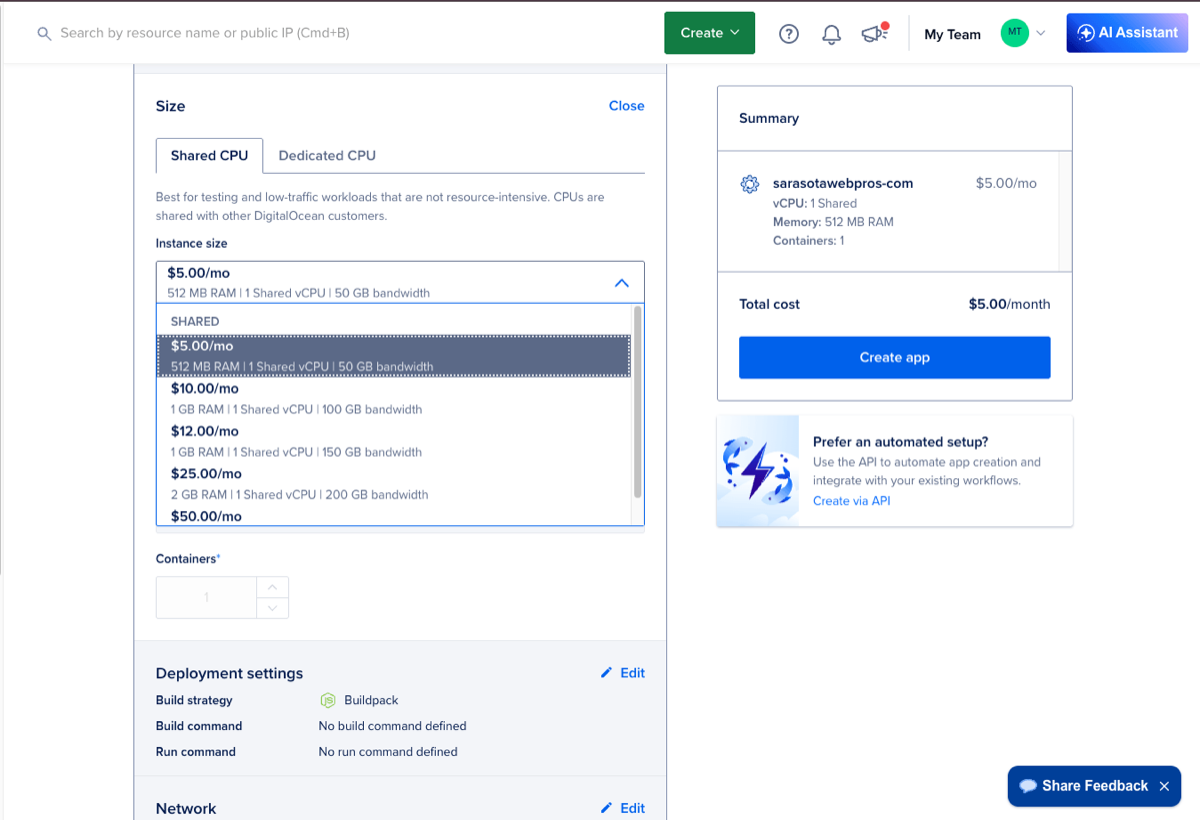
Before you flip the resource type, look at Size. App Platform often pre-selects a plan around twenty-four dollars per month with more CPU, RAM, and containers than a static site with modest traffic will ever touch.
Click Edit next to Size, open the instance dropdown, and choose the five dollar per month tier (512 MB RAM on a shared vCPU was the option when I last went through this). For a personal or small-team blog served as static files, that tier has been completely acceptable in production.
Pricing changes. Treat the numbers as snapshots, not promises.
Step 4: Change the resource type to Static Site
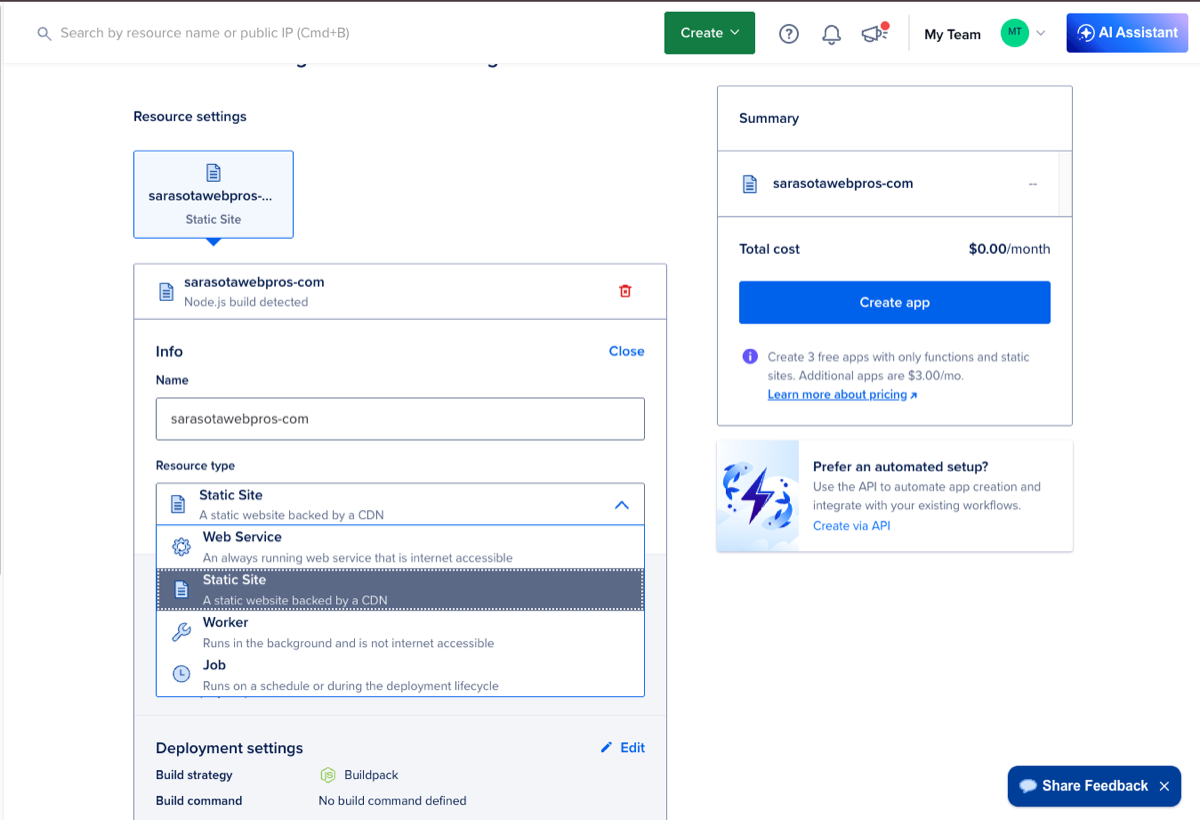
Under Info, click Edit next to Resource type. DigitalOcean will have Web Service selected because it detected a Node build. Change it to Static Site (described in the UI as a static website backed by a CDN).
If you skip this and deploy anyway, the first build will fail. Astro’s dist/ output is just static HTML, CSS, and JavaScript. There is no Node process listening on a port for App Platform to health-check. Calling it a Web Service when it is not is the most common reason an Astro deploy breaks on day one.
While you are in deployment settings, set:
- Build command:
npm run build(ornpm ci && npm run buildif you prefer a clean install every time) - Output directory:
dist
If your project needs a specific Node version, add an environment variable such as NODE_VERSION=22.12.0 to match your repo (this site pins that in .nvmrc).
Finish and deploy
With the size set to five dollars and the resource type set to Static Site, the rest of the create flow is mostly confirming things look right. Name the app if you have not already, double-check the build settings, and click Create Resources.
The first build usually takes a couple of minutes. When it goes green, App Platform gives you an ondigitalocean.app URL. Open it in a browser and you have a live site.
I already deployed as a Web Service and the build broke. Now what?
Maybe you clicked through too fast, or you fixed the size but not the resource type. The deploy fails, health checks complain, and the logs mention a missing start command. App Platform is trying to launch a Node server that your static build never created.
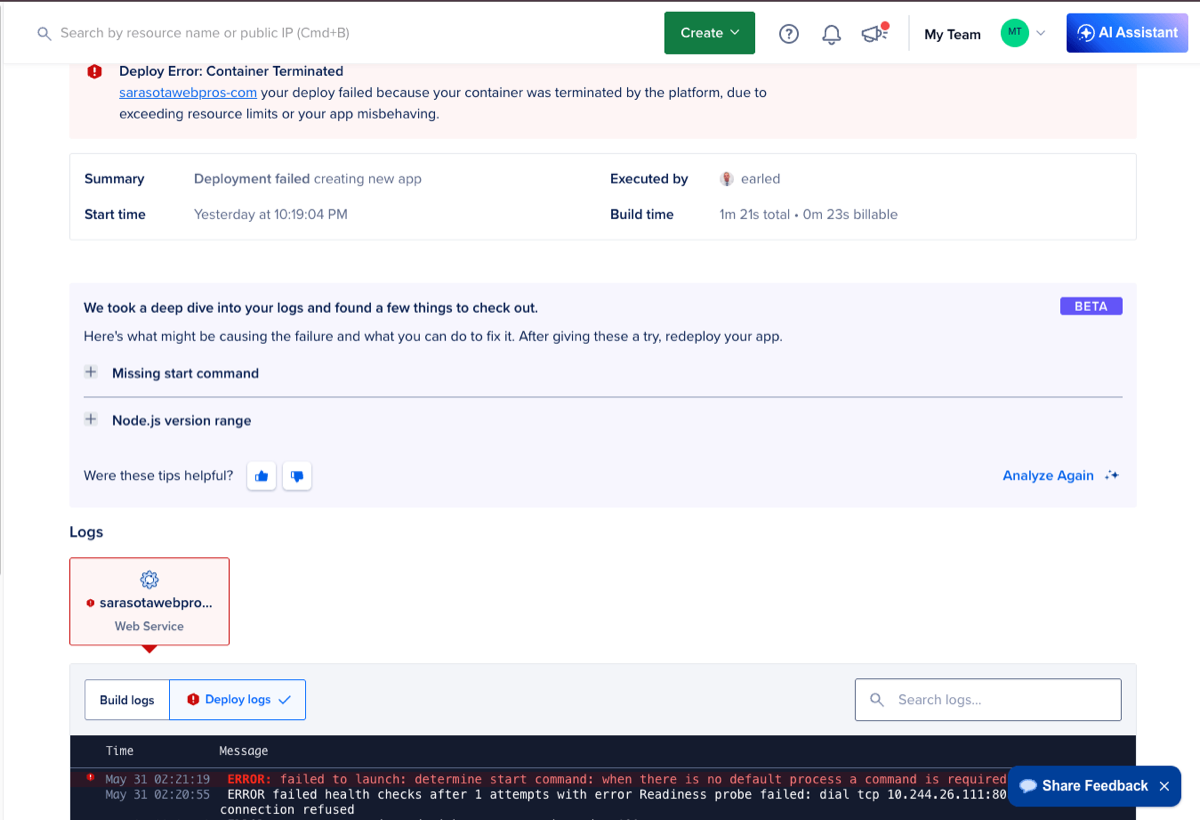
You do not have to delete the app and start over. Open the app, go to Settings, choose the App tab, and scroll to App Spec. Click Edit to open the YAML.
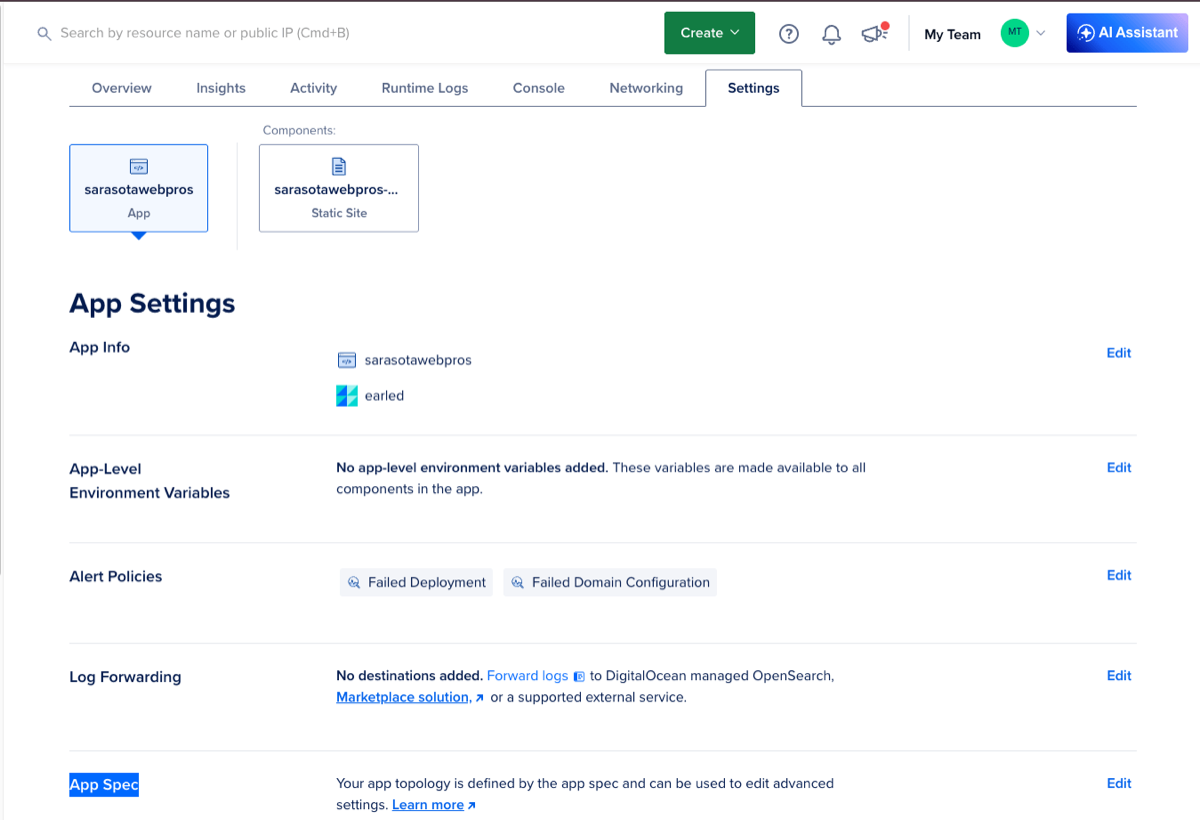
You will likely see a services block shaped like this. The top-level services key is what tells DigitalOcean to provision a long-running container:
services:
- environment_slug: node-js
  github:
    branch: main
    deploy_on_push: true
    repo: your-repo-name
  http_port: 8080
  instance_count: 1
  instance_size_slug: apps-s-1vcpu-0.5gb
  name: your-digital-ocean-app-name
  source_dir: /
To make this work as a static site, rename the top-level key from services to static_sites. That is the name DigitalOcean uses internally for the static path. Drop the runtime settings that no longer apply: http_port, instance_count, and instance_size_slug. A static site does not have a long-running process, so there is nothing to size or count. Add build_command: npm run build so App Platform knows how to produce your output, and output_dir: dist so it knows where the built files land. Keep environment_slug: node-js, because nothing runs at request time but the build container still needs Node to run your build script.
After those edits, your spec should look something like this:
static_sites:
- build_command: npm run build
  environment_slug: node-js
  github:
    branch: main
    deploy_on_push: true
    repo: your-repo-name
  name: your-digital-ocean-app-name
  output_dir: dist
  source_dir: /
Save the spec and App Platform kicks off a new deploy as a Static Site. A few minutes later you should have the same result you would have gotten if you had caught the resource type during create.
After it goes live
Open the URL App Platform gives you and click around. Check /, a blog post, and /sitemap-index.xml if you ship one. Push a small change to your deploy branch and confirm deploy_on_push triggers a fresh build.
Custom domains and HTTPS live in the same Settings area. Add the domain, point your DNS at the app, and TLS usually follows once propagation finishes.
Worth remembering
DigitalOcean is a good home for Astro. App Platform assumes you want a Web Service because that is what most Node repos need. Static sites are supported too, but you choose them on purpose, and if you already deployed with the wrong resource type, the App Spec is where you fix it.
If you are building the same way this site does, fully static HTML at the edge, the five dollar tier and a static_sites entry are what has worked for me. If you move to SSR later, App Platform handles that as well. Match the deploy path to your Astro config before you click Create.